
How to Add Multiple Healthcare Facilities
-
Click on the Add Multiple Facilities button.

-
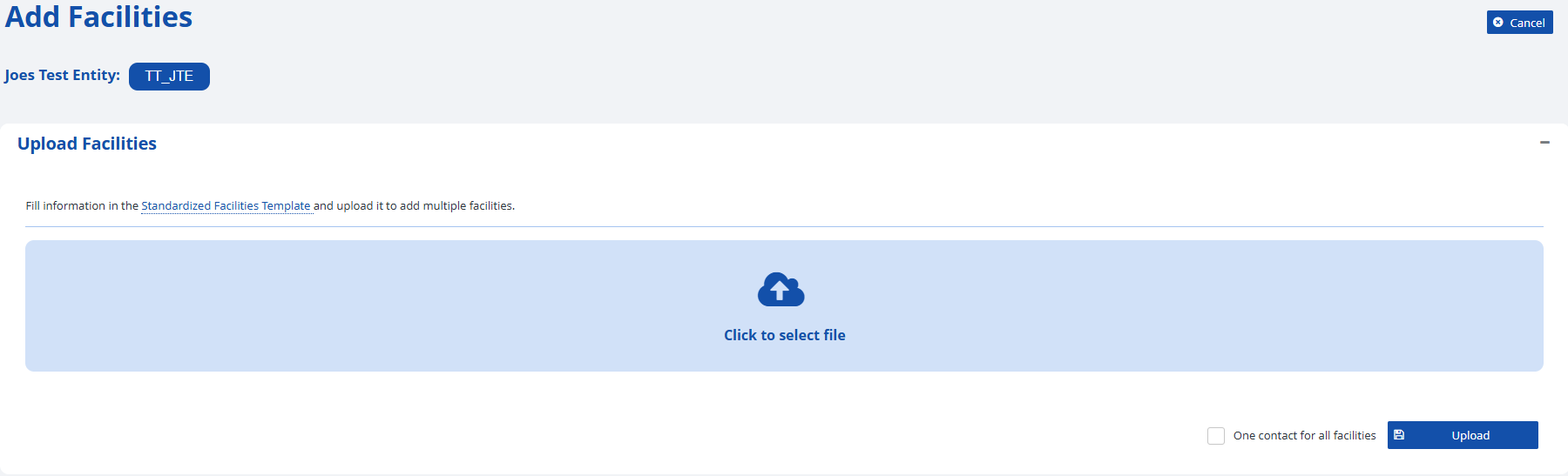
You will be directed to the Add Facilities screen.
-
-
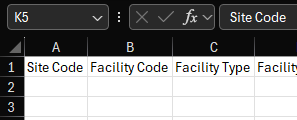
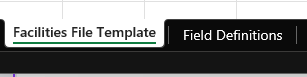
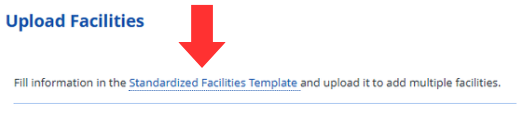
Click on the Standardized Facilities Template link to download a template to populate. The template will download in an Excel workbook format (.xlsx). The first tab titled Facilities File Template contains columns to enter the same information available when adding a single facility. A table describing each heading is available in the previous subsection.The second tab titled Field Definitions provides an abbreviated summary of each field, its requirement status, and an example.

-
-
Populate the Standardized Facilities Template with each facility occupying a single row.
-
Press the Click to select file button to choose the populated template to upload into the system.

-
If all facilities share a single contact person, you can check the box labeled One contact for all facilities and data fields for that individual person will appear.
A description of these fields can be found in the table in the previous subsection.
Note: If contact information is included in both the uploaded data file and the UI (via "One contact for all facilities"), the UI entry will override and apply to all created facilities.
-

-
Click the Upload button to import the data populated in the file you selected in step 5.

-
The Cancel button will discard any changes made on this screen and return the user to the previous page.
