Manage Roles
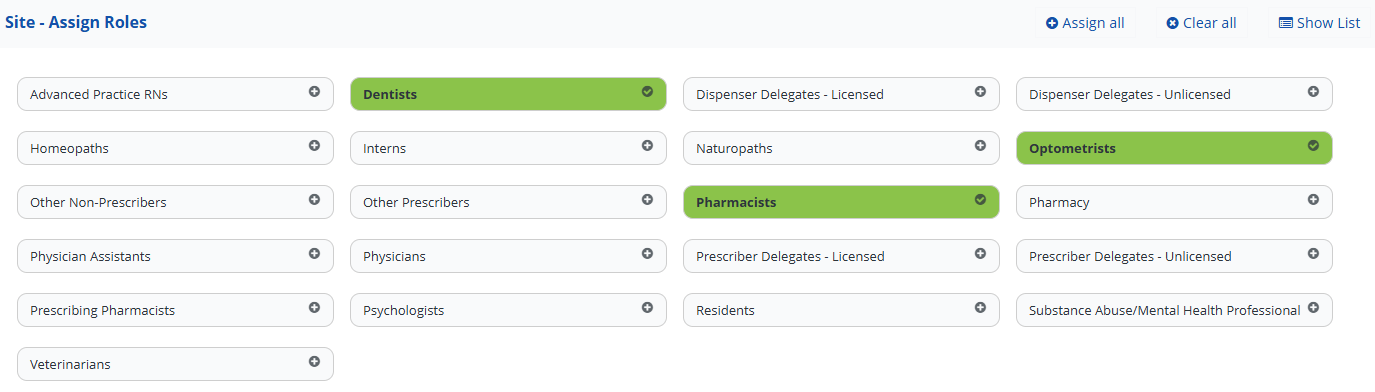
This section enables the State PDMP Administrator to assign roles that authorize specific users within a healthcare entity to submit prescription data requests. Roles are assigned by selecting the appropriate tags associated with the healthcare entity.
Each tag corresponds to a recognized healthcare professional role or the type of services provided by the entity. These role assignments determine the level of access and functionality available to the entity within the RxCheck system.
All available roles are displayed by default as shown below. Clicking on a role will change the role to green. A green highlighted role is active or "Selected" and allows that role to initiate a query, while an off-white color indicates that the role is "Authorized" but inactive and cannot initiate a query.
| Button Name | Button Image | Functionality |
|---|---|---|
| Assign All |  | Automatically selects all displayed roles. |
| Clear All |  | Automatically deselects all displayed roles. |
| Show List |  | Will display all available roles in two separate lists, an Authorized Roles list and a Selected Roles list. |
| Hide List |  | Will display all available roles as tags (default). Note: This option is only available when the roles are displayed as two separate lists. |
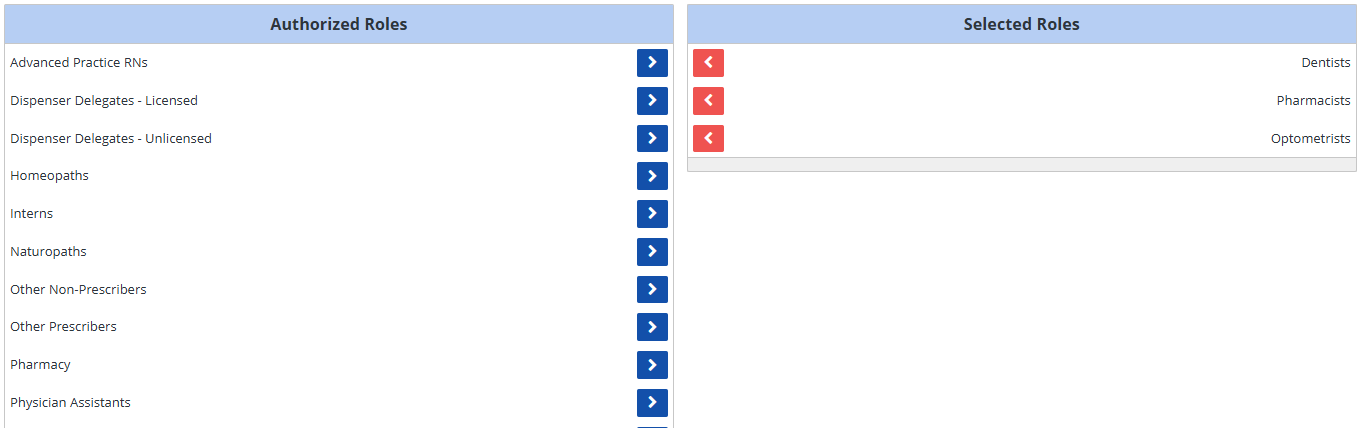
A screenshot of the Show List option is shown below and will only be displayed if the Show List button is clicked.
Clicking on a blue arrow transfers a role from the Authorized Roles list to the Selected Roles list. Clicking on an orange arrow transfers a role from the Selected Roles list to the Authorized Roles list.