Reset Your Mobile Authenticator App
Users can set up or reset their authenticator app by:
- Scanning the QR code from their RxConsole account creation email, or
- Clicking Reset QR Code on the authenticator code screen.
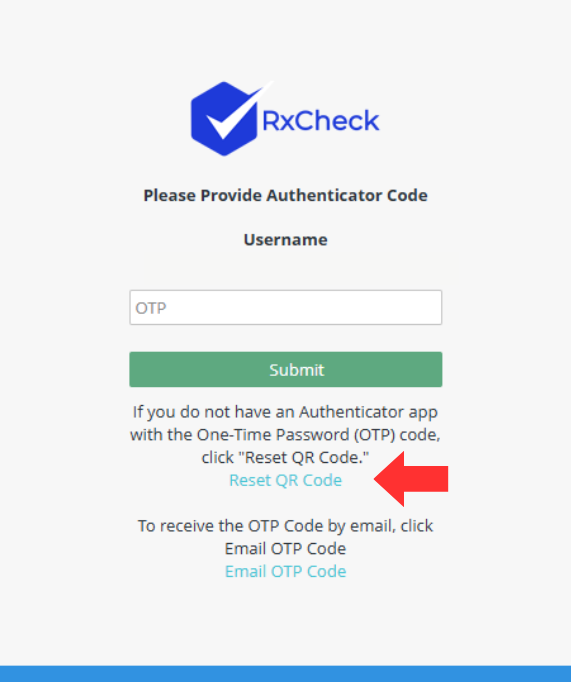
If you clicked the Reset QR Code link, press the Email QR Code button on the following screen.
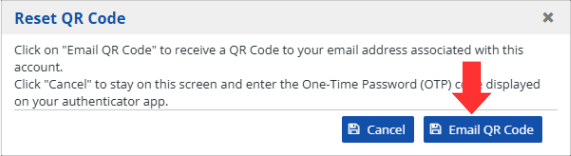
A Reset QR Code – Email Sent pop-up will display.

Press the Ok button.

Users will receive an email from "prod-notif" with the subject Reset QR Code.

Open the email and scan the QR Code.
Note: the QR code here is for reference only.Note: If the user previously set up authentication in a mobile authenticator app, they should delete the existing RxConsole account entry in that authenticator app before scanning the new QR code to avoid duplicate entries.
Set up using Google Authenticator app
1. Launch the Google Authenticator app on your mobile device.
2. Press the + button.
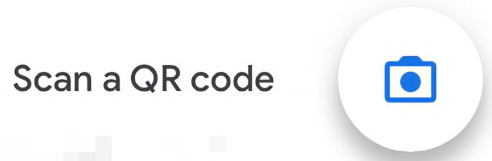
3. Press the camera icon to scan a QR code.
4. Scan the QR code in the RxConsole email.

Set up using Duo Mobile Authenticator app
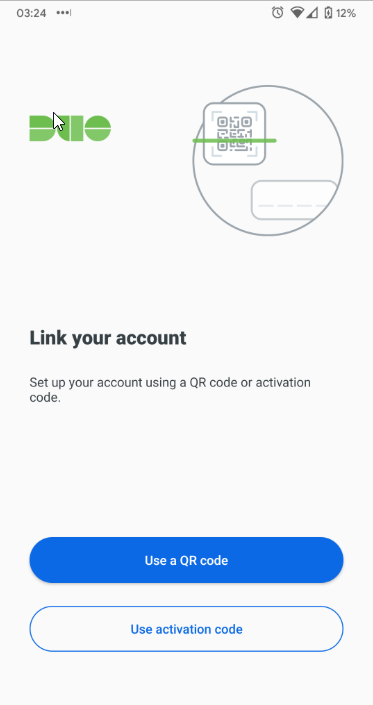
1. Launch the Duo Mobile Authenticator app on your mobile device.
2. Press the + Add button.
3. Press the Use QR Code button.
4. Scan the QR code in the RxConsole email.

Set up using Microsoft Authenticator app
1. Launch the Microsoft Authenticator app on your mobile device.
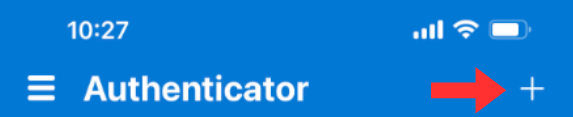
2. Press the + icon.
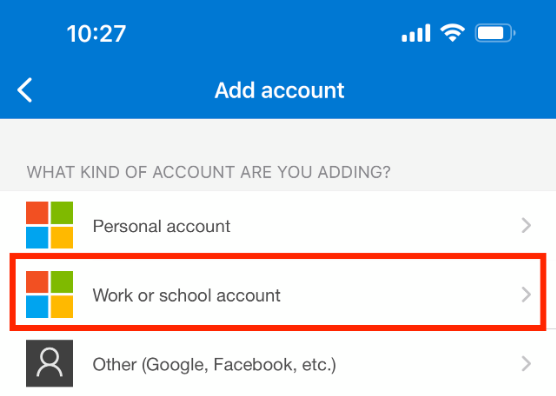
3. Select Work or school account.
4. Press the Scan QR Code option.
5. Scan the QR code in the RxConsole email.