
Assigning Sites to a Vendor
Before a vendor can manage an HCE, the site will need to be assigned to them by the state PDMP Administrator. This allows the PDMP Administrator to provide and revoke access of an HCE to the vendor at their discretion.
The following steps outline how a PDMP Administrator can assign an HCE to a vendor.
-
Click on the Healthcare Entities button, located on the left-hand side of the screen.

-
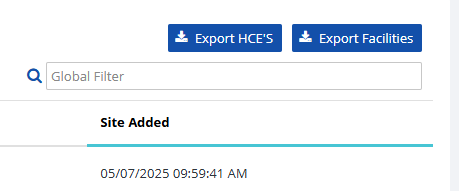
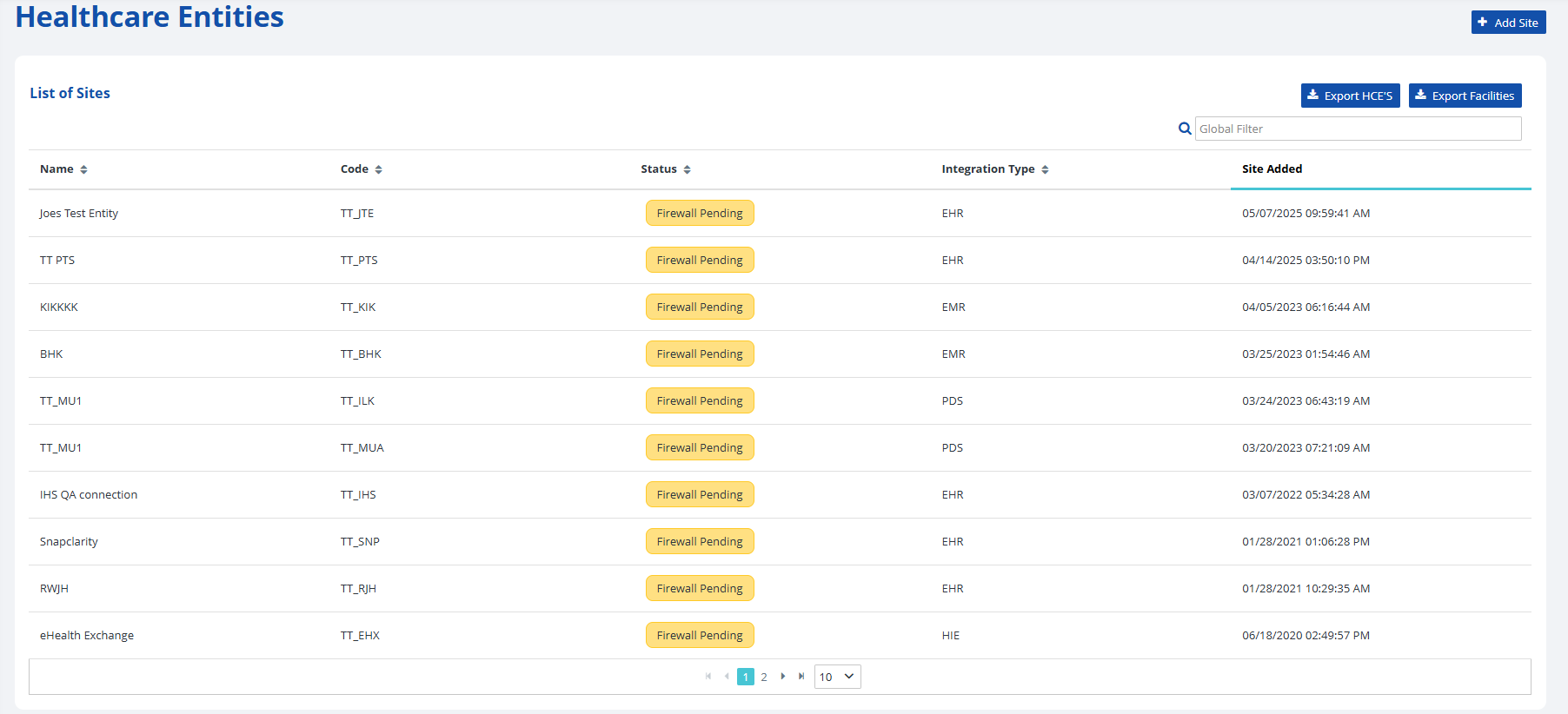
Find the healthcare entity using one of two methods:
- Scroll through the list on the screen (may need to navigate to the next screen by using the navigation arrows at the bottom of the list).
- Type the name of the HCE into the search bar labeled Global Filter in the top right.

-
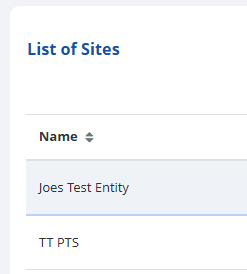
Select the desired healthcare entity to view further details about that facility.
-
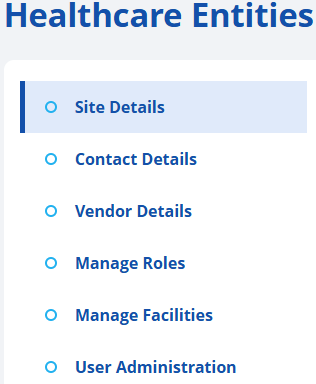
After opening the desired site, navigate to the Site Details section of the page by using the scroll bar or clicking on the site details text on the screen.
-
Press the lock icon to unlock the ability to assign the site to an authorized vendor.

-
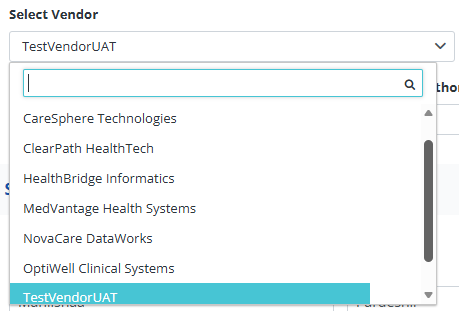
You will now have the ability to select an authorized vendor from a dropdown list.
Selecting a vendor here, assigns that HCE to a vendor account for management.
If you do not see the desired vendor, ensure they have been approved as an authorized vendor.
-
To edit a record, make your changes and click the Save button to ensure any new information is recorded.
To exit without saving, click on the Cancel button.

