Populate and Submit the MOU Worksheet
-
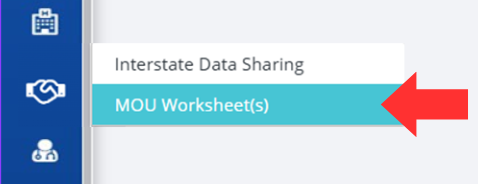
Click on the Interstate Data Sharing button, followed by the MOU Worksheet(s) option, located on the left-hand side of the screen.
-
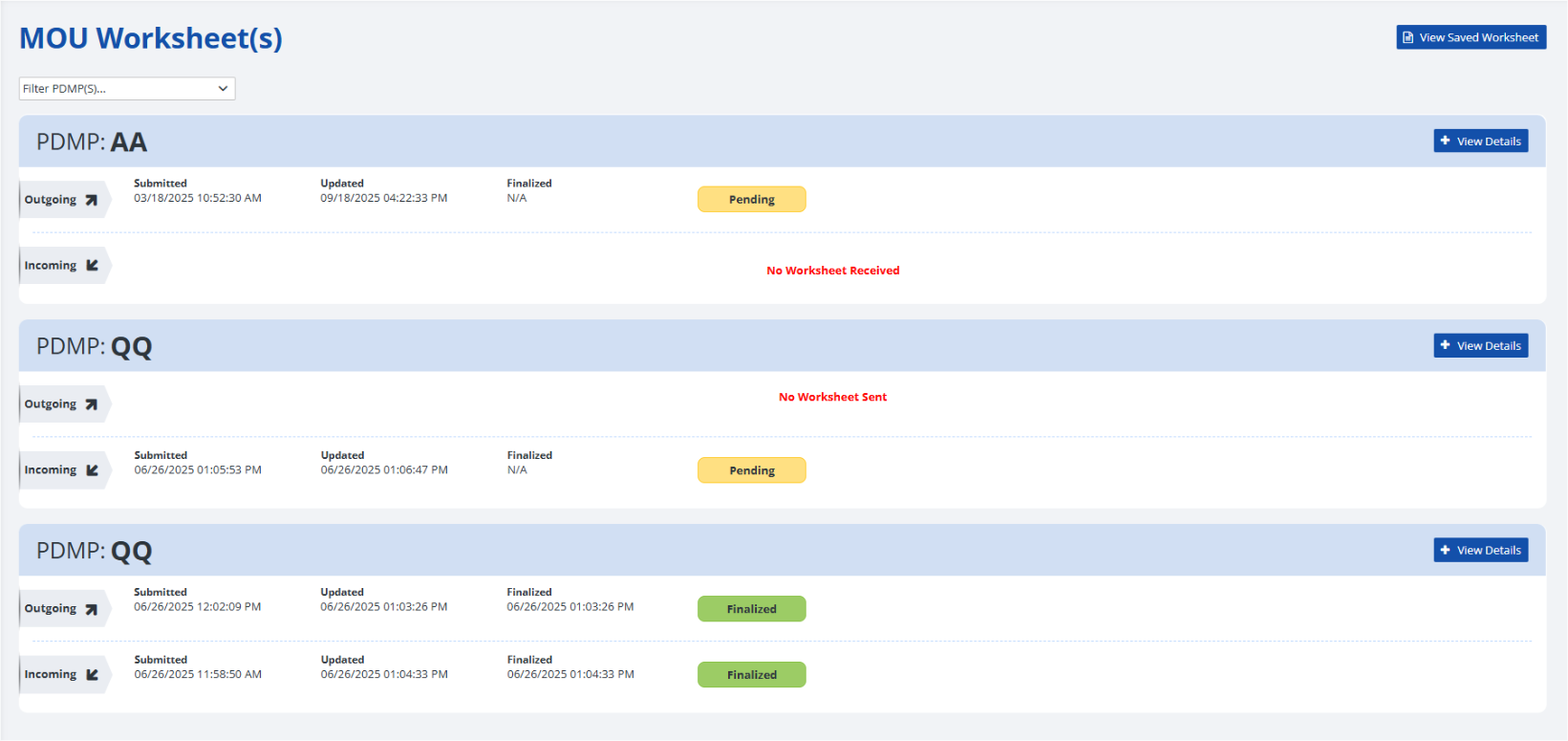
The MOU Worksheet(s) page is displayed.
-
-
Click on the Fill New Worksheet button (if you have not completed a worksheet yet) or View Saved Worksheet (if you have previously completed a worksheet).


-
On the new MOU Worksheet page, populate the following sections:
- State Administration's Information
- User Validation Procedures
- Data Access and Security
- Data Elements for Request Submissions
- Query Response
- Miscellaneous
Note: Fields with a red asterisk ( * ) are required. -
Click the Save button to confirm and record your changes to the MOU worksheet.

-
Alternatively, you can press the Cancel button to discard the changes and return to the previous screen.

-
After saving, the View Saved Worksheet button will be displayed.

-
Click on the View Saved Worksheet button to view the saved MOU Worksheet. PDMP Administrators can update the contents and/or share the MOU Worksheet with other state(s).

-
To edit the worksheet, click on the Update button.

-
To share the worksheet with another state, click on the Share button.

-
Select a state from the dropdown menu and click the Share Form button to send the form to the selected state.

-
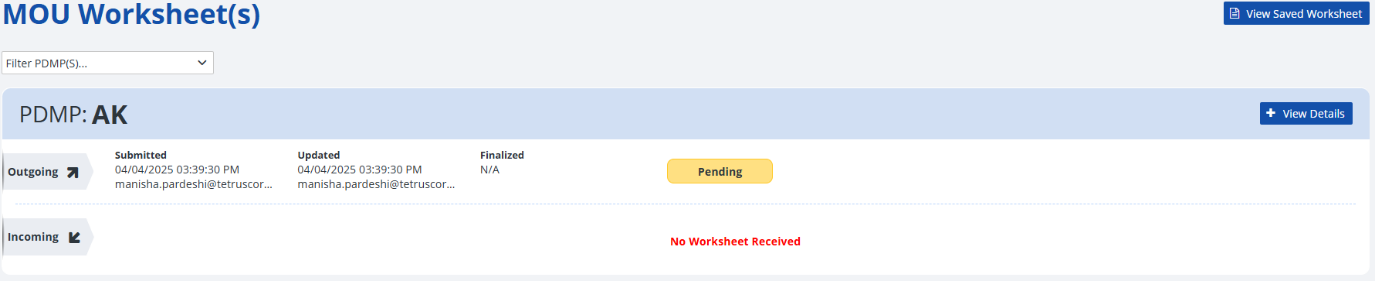
The MOU worksheet shared with the potential partnering state is displayed on the MOU Worksheet page with a "Pending" Status.
-