
Review and Respond to an MOU Worksheet
-
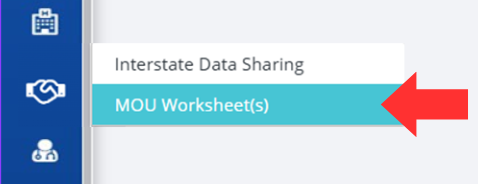
Click on the Interstate Data Sharing button, followed by the MOU Worksheet(s) option, located on the left-hand side of the screen.
-
The MOU Worksheet(s) page is displayed with the MOU Worksheet record submitted by the PDMP State for Interstate Data Sharing Request.
-

-
Click on the View Details button to display the MOU Worksheet data submitted by the other PDMP State as view-only data.
Note: If the state that received the MOU Worksheet from another PDMP State has not filled out their MOU worksheet, they can do so by following the steps in the previous section titled, Populate and Submit the MOU Worksheet.
-
Click the Cancel button to discard the MOU worksheet data.

-
Click the Print button to print or save a copy of the MOU Worksheet.

-
To agree to the MOU Worksheet, click on the Finalize button.

-
The MOU Worksheet record will be displayed with a status of "Finalized" for both PDMP States.
-
