Add a New Datasource File
-
Follow steps 1-3 under the section titled View and Add a Datasource for Provider Validation in this guide.
-
Select the "File" option under the Datasource Type dropdown.
Note: Selecting the File option, allows a PDMP administrator to upload a .csv (CSV) or .xlsx (Excel workbook) .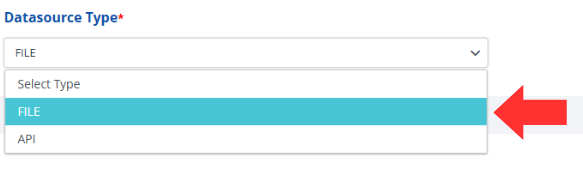
-
Enter a name for your datasource file in the text field labeled, Datasource Name.
Note: The name does not need to match your datasource file. The name in this field can be up to 15 alphanumeric characters (Spaces and special characters are not allowed).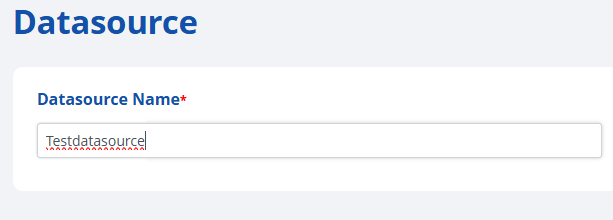
-
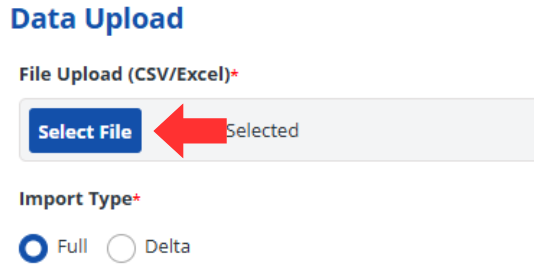
Press the Select File button under the Data Upload section.
- Find your datasource file using the system dialog window.
-
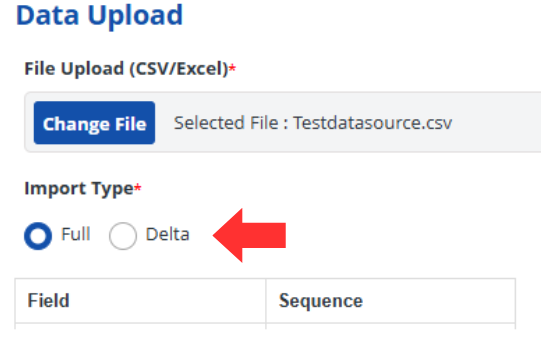
Select your import type:
- Full – will import the entire datasource file under the name you entered in step 3.
- Delta – this is only available when viewing a previous datasource (see previous section titled, View and Add a Datasource for Provider Validation for instructions to view a previous datasource).
-
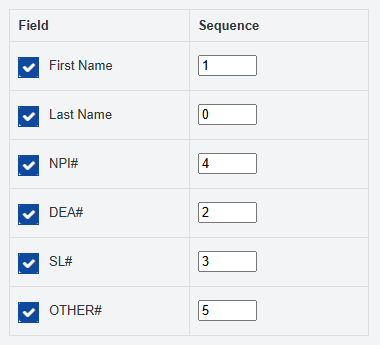
Check the fields that are present in your datasource file. If you did not include a field, you can leave the box unchecked.
- After checking the box, you will need to set the sequence. This refers to the order of the columns in your datasource file.
Note: Column A is sequence "0", Column B is sequence "1", etc.Example: Using step 3 from the previous subsection, you can see how the sequence is populated in the screenshot for this step.
-
Press the Save button on the right corner of the screen to add your datasource file to the RxConsole for your state.

-
Alternatively, if you do not wish to add your data source you can press the Cancel button to discard changes and return to the previous screen.

-
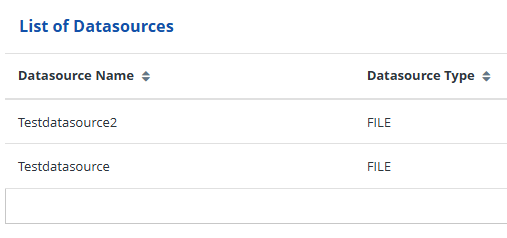
Verify your datasource file was successfully added by looking for the Alert that states, "Provider Data is Uploaded". You will also return to the Datasource screen and should see your datasource in the List of Datasources.