View patient and provider prescriptions data in analytical insights
-
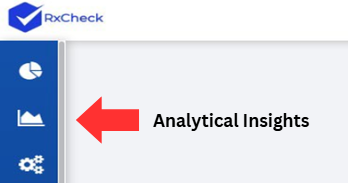
Click the area graph icon on the left-hand side of the screen to access the RxCheck Dashboard.
-
Click on the Patient or Provider button located in the top middle of the page, depending on the information you would like to display.

-
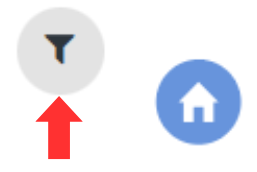
Click on the filter button in the top right corner.
-
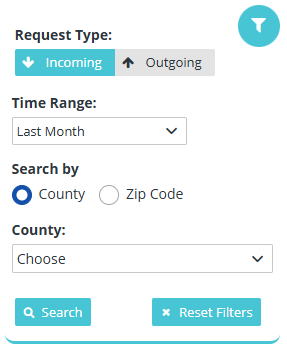
After clicking the filter button, you can view the search filters.
-
The Incoming and Outgoing buttons allow you to filter the request type.
Note: The Incoming option is selected and displayed by default.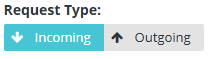
-
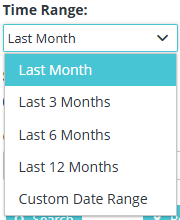
Use the Time Range dropdown to select a period you want to display.
-
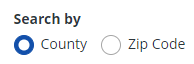
Prescription information can be searched by County or Zip Code.
How to search by county
-
Click on the County radio button.
Note: The County button is selected by default.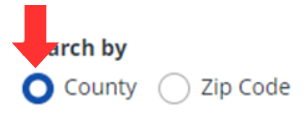
-
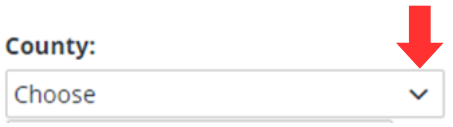
Click on the downward-facing arrow for the filter titled "County" to reveal a list of counties.
-
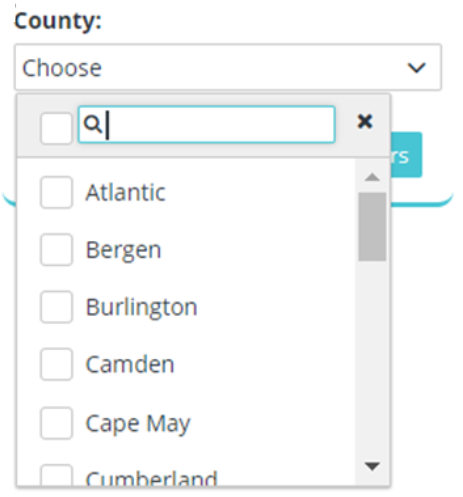
Select your County(ies) by:
- Scrolling through the dropdown options and checking the box, or
- Typing in the search bar to filter results.
-
Click the Search button to display prescription counts for patients based on the counties selected.
-
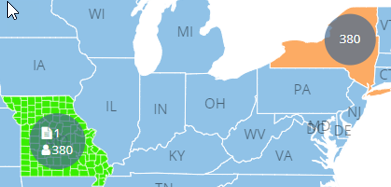
Results are displayed on the map with the user's state highlighted in green and the connected states in orange.
How to search by Zip Code
-
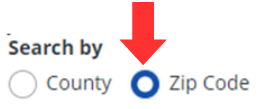
Click on the Zip Code radio button.
-
Enter the zip code and the desired distance in miles around the zip code to be searched.

-
Click the Search button to display prescription counts for patients based on the zip code and range entered.
-
Results are displayed on the map with the user's state highlighted in green and the connected states in orange.
Note: Click on the Reset Filters button to return all selections to the default values.