
Select Roles for Interstate Data-Sharing
-
Click on the Interstate Data Sharing – Role Management button, located on the left-hand side of the screen.
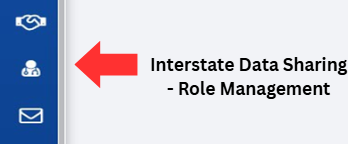
-
Select the PDMP Site you would like to manage the role for, by selecting the downward-facing arrow in the box labeled Select PDMP Site:. A user can find a site by:
- Scrolling through the list in the dropdown, or
- Entering the name or state code for the desired state in the dropdown search box.
Note: Only authorized sites from the Interstate Date Sharing section will be shown here as options.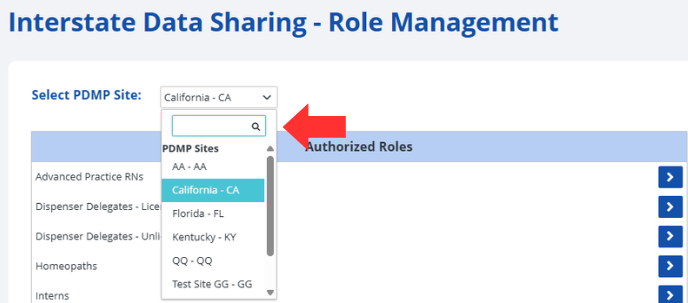
-
Scroll through the list of Authorized Roles and locate the role you would like to add for Interstate Data Sharing.
-

-
Click on the blue arrow button aligned with the desired role.

-
Verify that the role has moved from the Authorized Roles list on the left to the Selected Roles list on the right.
Note: Recently moved roles are not listed alphabetically and will instead appear at the bottom of the Selected Roles list.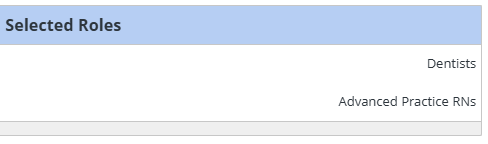
-
Click the Save button on the right corner of the screen to confirm and record your changes.
Note: If the change was implemented successfully, an alert will momentarily appear on the right-hand side of the screen with the message, "Alert – Selected Roles Saved"