Filter the Hub Audit Logs
-
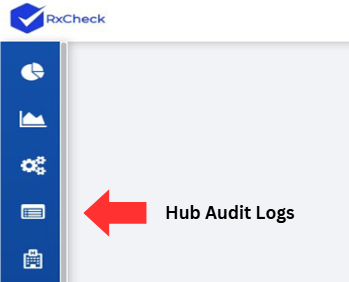
Click on the Hub Audit Logs button, located on the left-hand side of the screen.
-
Select the appropriate Site Selector option:
- All Site- Lists all incoming and outgoing requests to/from your state.
- Requesting Site- A state that sent a request to your state.
- Disclosing Site- A state that received a request from your state.
Note: This is a required field and is set to All Site by default.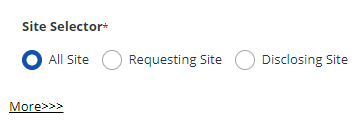
-
Select the Site Code by clicking the down arrow and then:
- Scrolling through the dropdown options and checking the box, or
- Typing in the search bar to filter results.
Note: This filter is only active when Disclosing Site or Requesting Site is selected in the Site Selector in step 2 above. This field is required.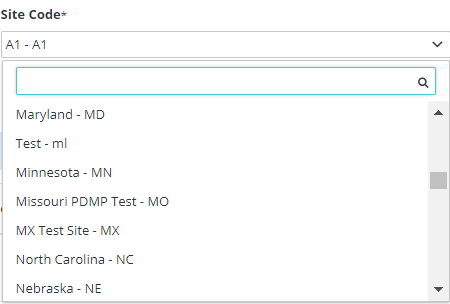
-
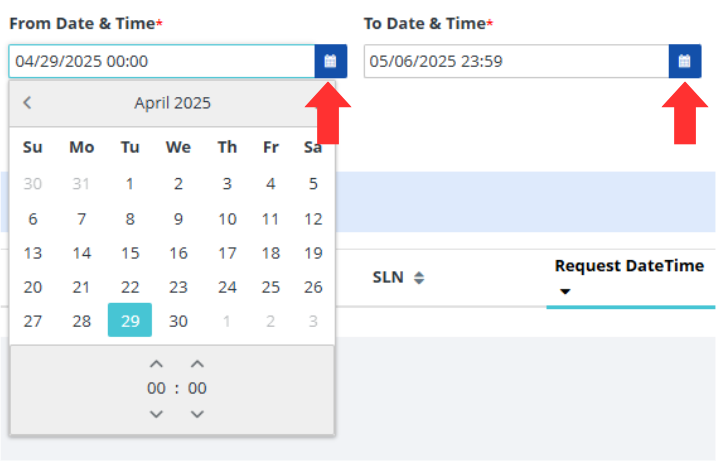
Select the date and time range to filter the audit log:
- From DateTime – Start date and time
- To DateTime – End date and time
Click the blue calendar icon to choose a date. Use the left/right arrows to switch months. Adjust the time using the up/down arrows below the calendar (24-hour format: HH:MM).
-
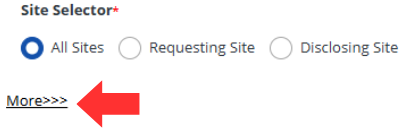
Clicking on the More>>> link located below the Site Selector filter will provide additional filtering options.
-
The following additional filter options are available:
- Message ID
- Request ID
- Requestor
- Roles
- DEA#
- NPI#
- SL#
- Other#
- Status Types
Enter an appropriate value into your desired filter option field. An explanation of each field is listed in a table following these steps.


-
Click on the Filter button to apply the selected Hub Audit Log criteria.